One of the greatest things about this game (among many other things) is the ability to edit the actual code of the game. Over the years, we have collected lots of information that can be very useful to edit the game. Our knowledge continues to grow as we learn new things, so you may want to check back once in a while for updates.
Currently, this website has information on editing the Genesis and Sega CD versions of the game. The Genesis game has a .bin extension and the Sega CD version has an .iso extension. You can play the .bin and .iso files on the Gens emulator. Please choose the file type link below to proceed to the editing info for that file. Continue reading this page if you are new to editing and are looking for some basic knowledge.
BIN File Editing (Genesis) | ISO File Editing (Sega CD) | SMC File Editing (Super Nintendo)
|
|||||||||||||||||||||||||||||||||||||||||||||||||||||||||||||||||||||||||||
| Hex Code Conversion Chart | ||||||||||||||||||||||||
|---|---|---|---|---|---|---|---|---|---|---|---|---|---|---|---|---|---|---|---|---|---|---|---|---|
| Dec. | 00 | 01 | 02 | 03 | 04 | 05 | 06 | 07 | 08 | 09 | 10 | 11 | 12 | 13 | 14 | 15 | 16 | 17 | 18 | 19 | 20 | 21 | 22 | 23 |
| Hex. | 00 | 01 | 02 | 03 | 04 | 05 | 06 | 07 | 08 | 09 | 0A | 0B | 0C | 0D | 0E | 0F | 10 | 11 | 12 | 13 | 14 | 15 | 16 | 17 |
As you can see, Hex uses a 16 number system. Instead of 10 coming after 9, it uses 0A. Of course, this chart really goes on and on, I have only shown through the first 24 numbers. This is a useful link for doing quick conversions from Decimal to Hex: http://www.ascii.cl/conversion.htm.
There are 3 programs that we mainly use to edit the game with. They are Hex Workshop, Tile Layer Pro, and Tile Molester. Hex Workshop is used to edit hex code, and you would normally use this program to edit things like players names, ratings, numbers, uniform colors, etc. Explainations on how to do these things are listed on the Bin and Iso editing pages.
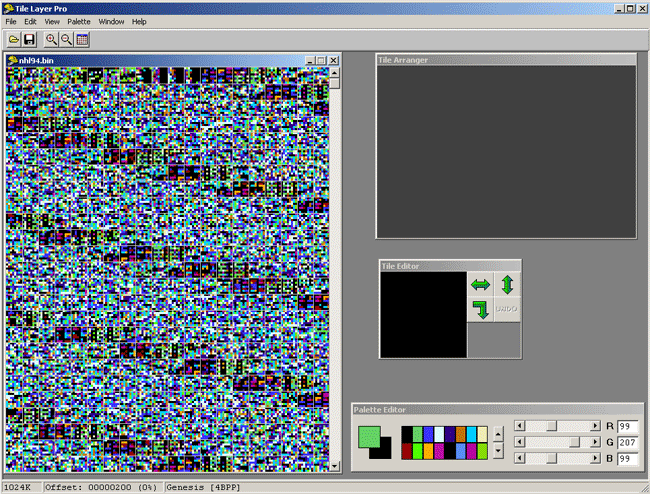
Tile Layer Pro and Tile Molester are used for editing some of the graphics in the game. These are typically used to edit ice logos, startup screen banners, the puck, and so on.
All of these programs show you the NHL94.bin or .iso data (whichever you want to edit). You may want to spend a little time going to the downloads section of this site, downloading these programs, and getting used to them. Once you feel comfortable with them, start reading about how to change certain things.
|
| Keyboard Value | Description |
|---|---|
| Up/Down Arrow Keys | Moves .Bin or .Iso Row Up/Down |
| Left/Right Arrow Keys | Moves .Bin or .Iso Row Left/Right |
| Minus/Plus Keys (- +) | Aligns Bytes Left/Right (Play around with this to make tiles line up correctly.) |
| Page Up/Page Down Keys | Exactly what it says, paging up or down through the file. |
| Home Key | Return to beginning of .Bin or .Iso (offset 0) |
| End Key | End of .Bin or .Iso |
| Ctrl+Left/Right Keys | Same as minus/plus keys |
You can zoom in and out on a window from 1x to 4x of its original size, either by clicking the magnifier buttons on the toolbar, or from the View->Zoom menu. Gridlines can be turned on/off in a similar manner.
By default, the .bin or .iso window has 16 rows of 16 columns, but you might want to view a file in a different resolution. You can resize the window either with the mouse, or with the keyboard. To resize with the keyboard, hold down shift, then press the arrow key in the direction you want to resize it in.
Again, please refer to the help file included in the Tile Layer Pro application for full instructions on how to use it.
This site created and maintained by Admins of the NHL'94 Forums 2003-2020.